

Opening a Deriv account is quick and straightforward. In just a few minutes, you can register online, verify your email and get access to a wide range of trading platforms. Whether you’re a beginner or an experienced trader, creating your account gives you everything you need to start trading forex, synthetic indices and more on Deriv’s secure and user-friendly platform.
How to open a Deriv Account (Updated 2026)
First, click the button below — it will take you to the official Deriv site.
This is what you will see on mobile:

This is what you will see on desktop or laptop:

On mobile, tap Open Account.
On desktop or laptop, enter your email, then click Create Account.
After tapping Opeen Account on mobile, you’ll be directed to the same page you see on desktop or laptop. Now enter your email and click Create Account. The step is the same on both devices, as shown below.
Mobile view:

Desktop/Laptop view:
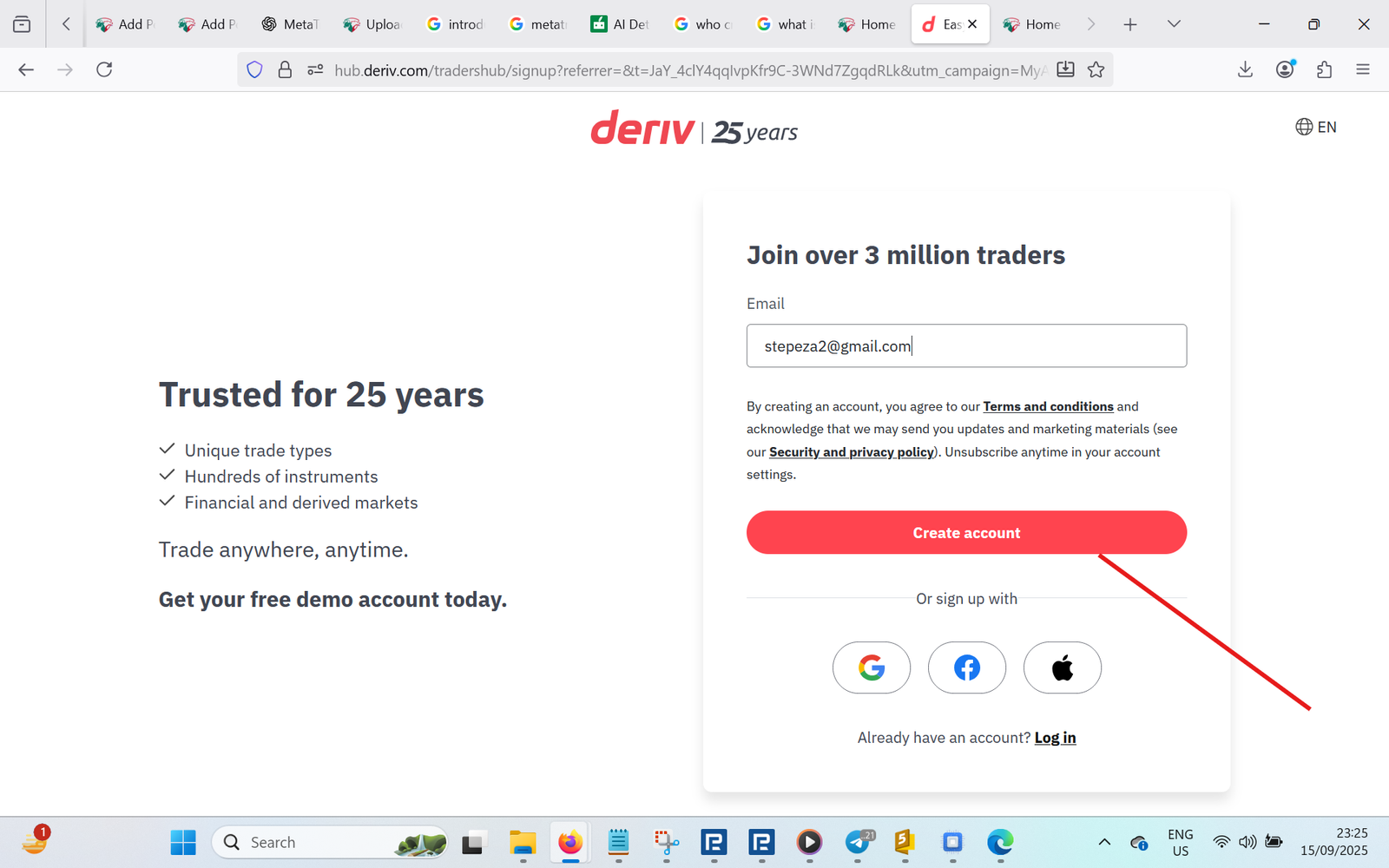
After clicking Create Account, you’ll be directed to a page that says Verify your email. Go to your email inbox and complete the verification. This step is the same on both laptop/desktop and mobile.

Now go to your email inbox. You will find an email from Deriv. Make sure the email shows as verified with a blue tick before doing anything else. After you confirm it’s verified, click Verify my email. This step is the same on all devices (mobile, laptop, or desktop).

Select your country of residence and click Next. This step is the same on both mobile and desktop.

Now create your password and click Create. Remember to use a password you will remember. This step is the same on all devices (mobile, laptop, and desktop).

Now click Complete my profile. You’ll see a Demo section here—ignore it for now; we’ll add a demo later.

You will be directed to a page where you must select your base account currency. I strongly recommend choosing USD — it’s simpler to use. This step is the same on all devices (mobile, laptop, and desktop).

Now add your personal details. Make sure they are correct, as you will have to verify them.

Continue with your personal details and press Next to proceed. This step is the same on mobile, laptop, and desktop.

Now fill in your employment status and your Tax ID (optional). Then click Next. This step is the same on mobile, laptop, and desktop.

Now add your address details and press Next. Make sure the information is correct, as you will need to verify it.

Tick all the required boxes here and press Create account. This step is the same on mobile, laptop, and desktop.

Your account is now created. Click Deposit if you want to go straight to a real account, or click Later if you want to practice trading on a free demo account first.
Remember: demo means demonstration — funds are virtual and any profits or losses are not real.

Trading Account Created — Real vs Demo
Your trading account has been created. The screen below shows what you’ll see: the red arrow indicates the Real/Demo switch, the yellow arrows show where to click to create a MetaTrader trading account, and the black arrow points to your wallet balance (click there if you want to start with a real account). You can also switch to Demo if you want to practice first—once you switch, a demo wallet becomes visible. After this, click MT5 Standard (either on Demo to practice or on Real to trade live).
Real account view:

Demo account view:

Now that you’ve clicked MT5 Standard, create a password you will remember and then click the red Set up password button, this step is the same on both demo and real account registration.
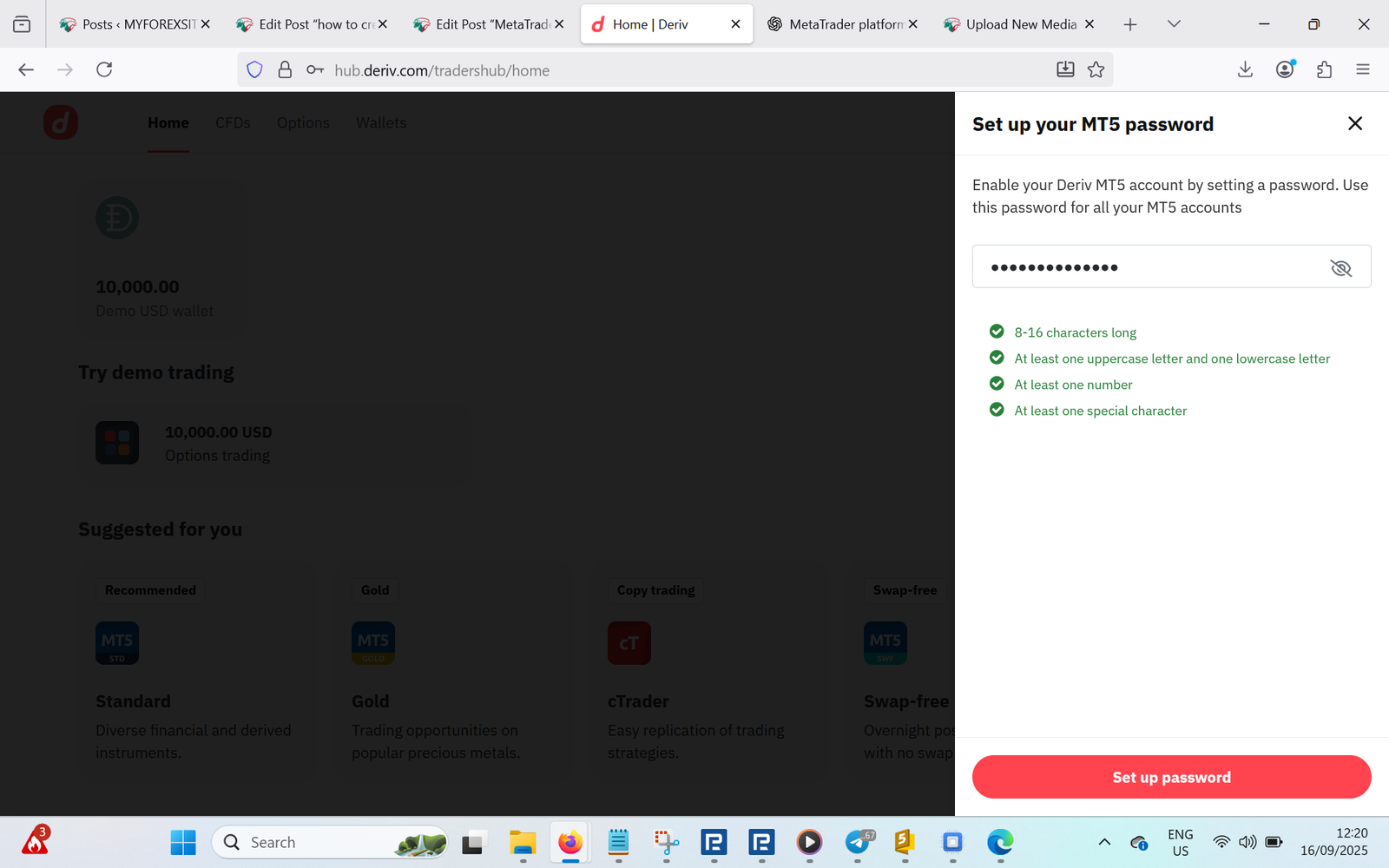
After creating your password, look on the right side—you’ll see two important items: Server name and Login ID. Copy them and save them; we’ll use them in MetaTrader 5.
The pictures below show what you’ll see on Real vs Demo. Note the different servers: Demo server = practice funds, Deriv (Real) server = live money.
Real account example:

Demo account example:


Your real account looks like this. To fund it and move money to MetaTrader, follow these steps:
- Click Add money, choose your deposit method, and complete the deposit.
- Click Wallets → Transfer.
- Transfer funds from your wallet to your MetaTrader (MT5) account.
To withdraw profits, click Wallet, then Transfer. Move money from your MT5 account to your wallet, then click Withdraw, choose your withdrawal method, and complete the process. For demo accounts, simply log in to MT5 and trade—no deposit is required. After this step, the next sections will show how to use MetaTrader and place trades, click the green button after this image to be directed to full metatrader introduction.

Now that you’ve created your account, read our full MetaTrader introduction to learn how to load your account on MetaTrader.